
Cloud-Based File Management
This walk-through demonstrates how to manage and edit design files in Cloud workspace in OrCAD X Capture 25.1. Managing designs with Cloud workspace provides centralized access to design files and keeps files up to date for all team members. After you complete the topic, you will be able to:
- Upload a design to a workspace
- Check out and edit a design within a workspace
To follow along, continue with the design from the last topic or use the provided design files. If the design files were not downloaded in the beginning of the Capture Walk-Through, the design files for this lesson can be found under the Materials tab.
 Open in New Window
Adding a Design to a Workspace
Step 1: Open the provided or continued design in OrCAD X Capture.
Step 2: Right-click the .dsn file in the Project Manager and select Add to Workspace. The project is added to your local workspace.
Step 3: Close the Project Manager to close the project.
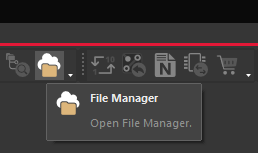
Step 4: Select File Manager from the toolbar. The File Manager tab opens.
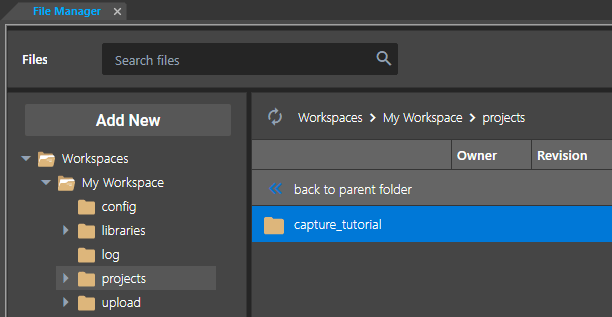
Step 5: Under Workspaces, expand My Workspace and select Projects. The project folder capture_tutorial is listed.
Step 6: Right-click the capture_tutorial folder and select Publish.
Step 7: The Publish window opens. Select Engineering from the Target Workspace dropdown. Select Major for the Revision to publish the first revision as 1.0. Enter any desired comments under Comments.
Note: Check Delete from My Workspace to remove the project from your personal workspace.
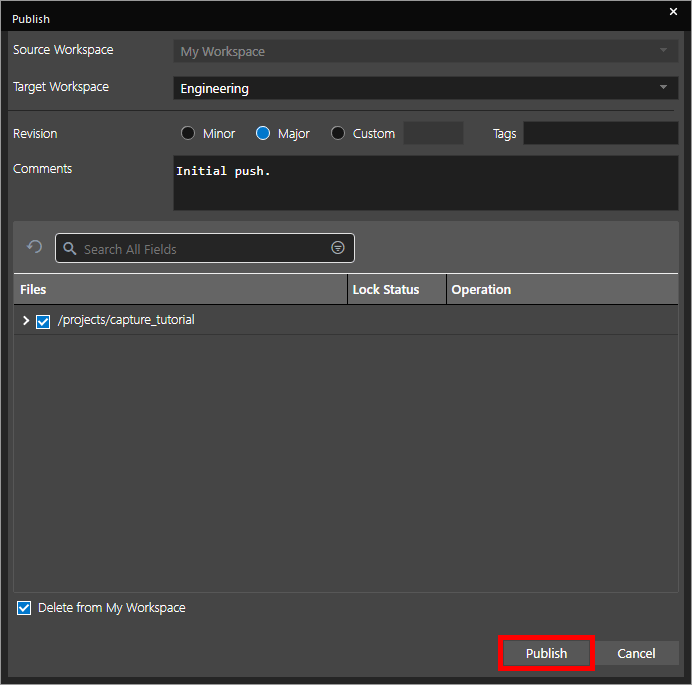
Step 8: Click Publish to move the project to the Engineering workspace. Other team members can now check out the project and edit it.
Step 9: Expand the Engineering folder and select Projects. A folder for capture_tutorial is listed.
Step 10: Double-click the capture_tutorial folder to open it. All project files are listed with the revision number and an “unlock” symbol to indicate that the project is checked in and can be edited.
Locking and Editing a Project
Note: Any designer or admin can lock a project in the cloud workspace to be edited.
Step 11: Select the Engineering > Projects folder in the File Manager.
Step 12: Right-click the capture_tutorial project and select Edit.
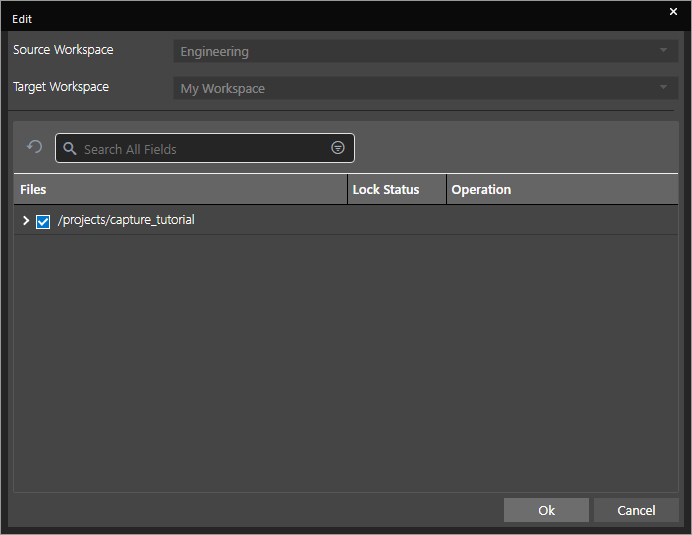
Step 13: The Edit window opens with your personal workspace automatically selected. Click OK. The project has been checked out.
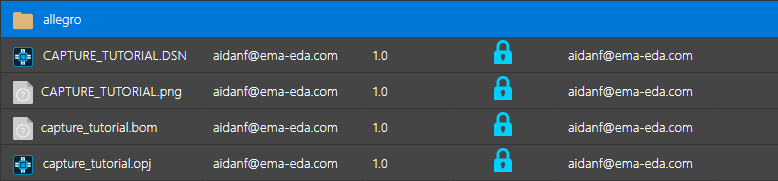
Step 14: Select the capture_tutorial folder. A “lock” symbol is now shown along with your Cadence ID, indicating that the project has been checked out and locked.
Step 15: Select My Workspace > Project > capture_tutorial in the workspace hierarchy.
Step 16: Double-click the capture_tutorial.opj file to open the project. The completed project is opened as before and the project can now be modified as normal.
Uploading Project Revisions
Step 17: After modifying the project, save and close the design.
Note: Closing the design is only necessary if you want to delete the design from your workspace when publishing.
Step 18: Open the File Manager. Select Workspaces > My Workspace > projects from the workspace manager.
Step 19: Right-click capture_tutorial and select Publish.
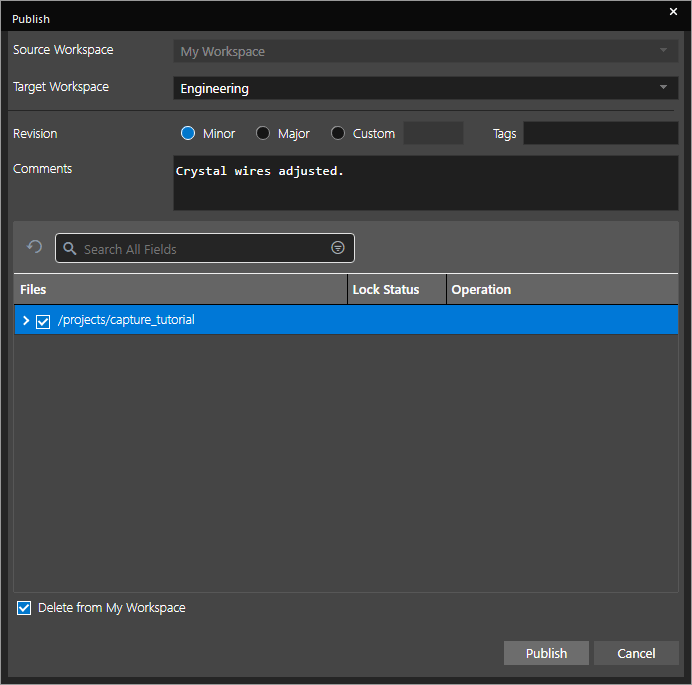
Step 20: Select the Engineering workspace. Set the revision to Minor and enter any desired comments. Check Delete from My Workspace and click Publish.
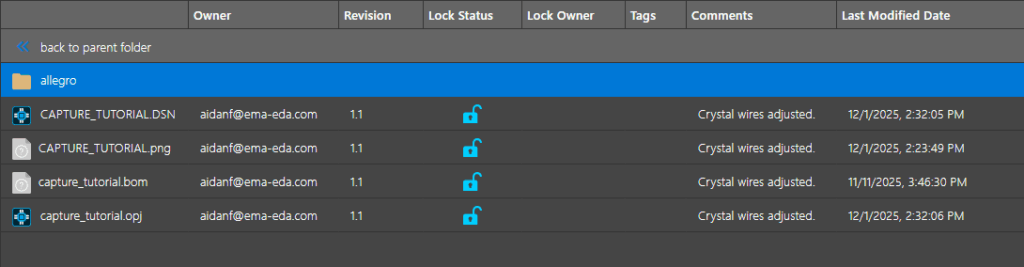
Step 21: Select the Engineering > Projects > capture_tutorial folder. All project files are now shown as unlocked with the revision number incremented, and comments added.
