
Lesson 11: Bill of Materials
When creating a Bill of Materials, it is important to include accurate information for component procurement, assembly, and testing. This walk-through demonstrates how to create a Bill of Materials (BOM) in OrCAD X Capture 25.1. After you complete this topic, you will be able to:
- Add required properties to components
- Create a custom BOM
- Open the BOM in Excel
- Create a zero-touch BOM
- Create BOM templates for reuse
To follow along, continue with the design from the last topic or use the provided design files. If the design files were not downloaded in the beginning of the Capture Walk-Through, the design files for this lesson can be found under the Materials tab.
 Open in New Window
Adding Manufacturer Properties
Step 1: In the schematic, right-click and select Selection Filter or press CTRL-I on the keyboard.
Step 2: Select Clear All.
Step 3: Check the box for Parts and click OK.
Step 4: Click and drag to select the entire schematic. Only the parts will be selected.
Step 5: Right-click any of the selected components and select Edit Properties to open the Property Editor tab.
Step 6: In the cell for C1 in the Manufacturer Name row, enter Murata.

Step 7: Click and drag the corner of the cell to extend this manufacturer name to C2 through C4.
Step 8: In the cell for C5 in the Manufacturer Name row, enter Samsung.
Step 9: Click and drag the corner of the cell to extend the name to C6 through C9.
Step 10: In the cell for C5 in the Manufacturer Part Number row, enter CL05F104ZO5NNNC.

Step 11: Click and drag the corner of the cell to extend the name to C6 through C9.
Step 12: Open the provided file, Capture_Tutorial_Manufacturer.csv, in a spreadsheet viewer such as Microsoft Excel or LibreOffice Calc.
Step 13: Hold Shift and select the entire table. Press CTRL-C on the keyboard to copy.
Step 14: Back in Capture, click and drag to select all Manufacturer Name and Manufacturer Part Number cells in the Property Editor window.
Step 15: Press CTRL-V on the keyboard to paste.
Adding Vendor Properties
Step 16: Select the New Property button.
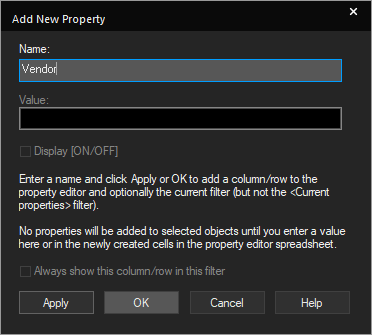
Step 17: Enter the name Vendor and click OK to create the property row.
Step 18: Select the new row. Right-click and select Edit.
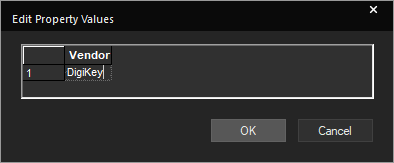
Step 19: Enter DigiKey for the vendor value. Click OK.
Step 20: Select Apply to apply the changes. Close the Property Editor tab.
Creating the BOM
Step 21: Select capture_tutorial.dsn in the project hierarchy.
Step 22: Select Tools > Bill of Materials from the menu.
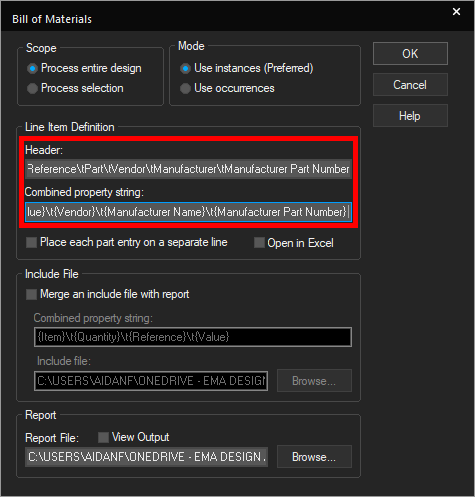
Step 23: Under Line Item Definition, copy the following string into the Header field.
Item\tQuantity\tReference\tPart\tVendor\tManufacturer\tManufacturer Part Number
Note: Make sure the text precisely matches the property fields added- including spaces and case. \t indicates a tab. The BOM is a CSV file separated by tabs.
Step 24: Copy the following string into the Combined Property field.
{Item}\t{Quantity}\t{Reference}\t{Value}\t{Vendor}\t{Manufacturer Name}\t{Manufacturer Part Number}
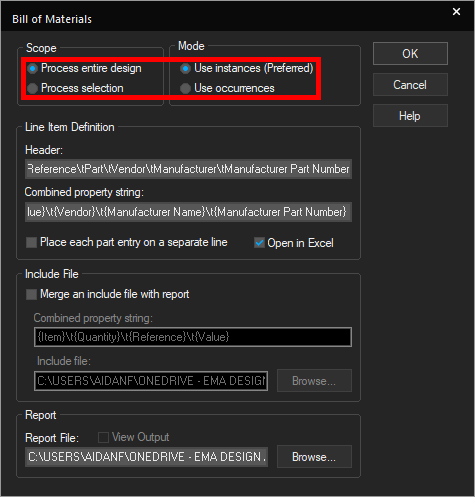
Step 25: Check the option for Open in Excel.
Step 26: Ensure Scope is set to Process Entire Design and Mode is set to Use Instances.
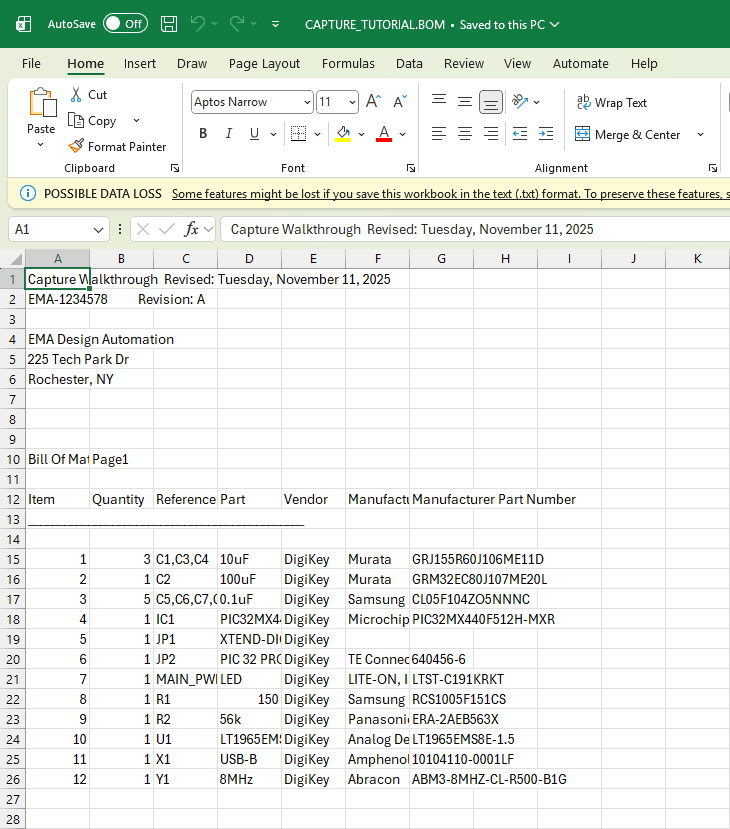
Step 27: Click OK. The Bill of Materials is generated and opens in Microsoft Excel.
Note: You can also view the bill of materials by double-clicking the report in the project directory outputs.
Creating a BOM with CIS (Optional)
If a component database is configured with CIS, BOM creation becomes more automated, pulling the fields, vendor, and manufacturing information directly from your component database. The following steps will demonstrate how to generate a BOM using CIS.
Step 28: Select Reports > CIS Bill of Materials > Standard from the menu.
Step 29: The Standard Bill of Materials window opens. Here you can select the template to use and the properties to include. The Report Properties section shows the fields that can be configured in the Bill of Materials. Select the desired field from the report properties.
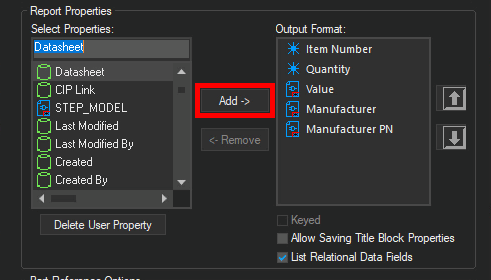
Step 30: Click Add to add the item to the Output Format table.
Step 31: Complete this process until all the fields are configured for your Bill of Materials. Common fields include:
- Reference Designator
- Value
- Quantity
- Manufacturer
- Manufacturer Part number
- Distributor
- Distributor Part Number
Note: To include secondary sources, select List Relational Data Fields and Relational Data Displayed.
Step 32: Check the option to Export BOM Report to Excel. This will open the BOM report in Excel for easy sharing with stakeholders and purchasing.
Saving a BOM for Reuse (Optional)
The structure of the Bill of Material can be saved and reapplied to future designs with CIS, expediting the BOM generation process further. The following steps will show how to save a BOM template for reuse.
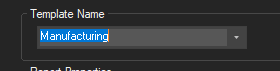
Step 33: Change the Template Name to Manufacturing. This will save the BOM format to be used in future designs.
Generating a BOM with CIS (Optional)
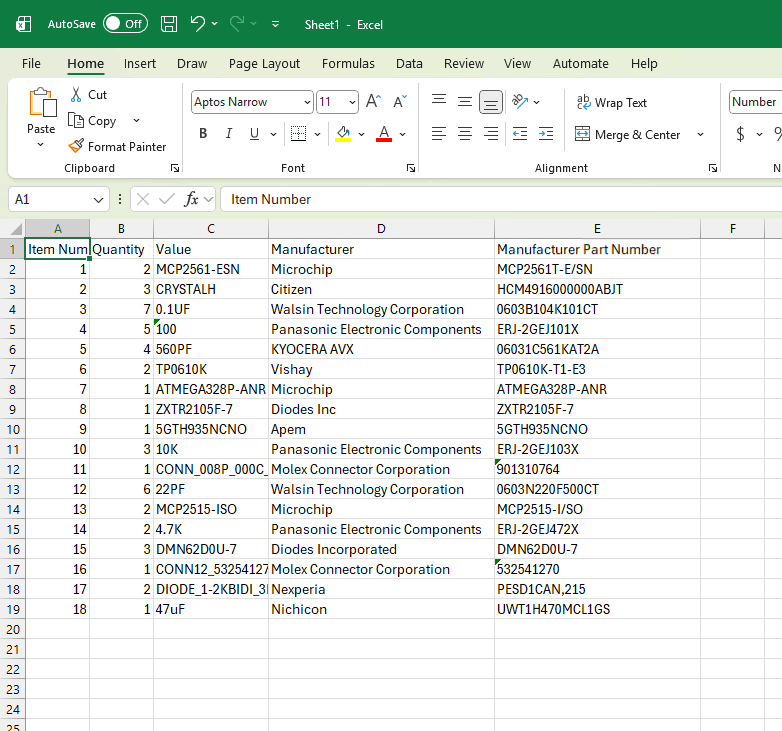
Step 34: Click OK. The BOM opens in Excel, showing the list of parts, their values, the libraries they were sourced from, and their reference designators.
Step 35: Close the tab. Click No when prompted to save the BOM.
Step 36: Close the Standard Bill of Materials window.
This completes the lesson on generating a bill of materials in OrCAD X. In the next lesson, you will learn how to generate a smart PDF for review and sharing with stakeholders.
