
Lesson 12: Smart PDF
This walk-through demonstrates how to create a PDF and Smart PDF of your schematic design that you can view from a PDF reader using OrCAD X Capture 25.1. The Smart PDF includes a hierarchy that you can navigate through without losing your design IP. This process can be used to enhance the schematic review process After you complete the topic, you will be able to:
- Generate a PDF
- Configure the first-time setup for a Smart PDF
- Generate a Smart PDF
- Navigate a Smart PDF
Additional methods are now available in OrCAD X Capture 25.1 to expedite the schematic review process, including:
Design review and markup: Add comments and markup directly in the schematic canvas.
Web-based viewer: Share designs with stakeholders for web-based review that does not need a software installation. Cloud capabilities are required.
To follow along, continue with the design from the last topic or use the provided design files. If the design files were not downloaded in the beginning of the Capture Walk-Through, the design files for this lesson can be found under the Materials tab.
 Open in New Window
Generating a Standard PDF
Step 1: Select the capture_tutorial.dsn file in the Project Hierarchy.
Step 2: Select File > Print from the menu.
Step 3: The Print window opens. Select Setup to change the active printer.
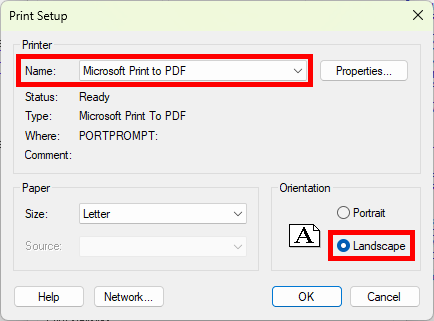
Step 4: Select Microsoft Print to PDF from the Name dropdown under Printer.
Step 5: Select Landscape for the orientation. Click OK.
Step 6: Click OK to start the print.
Step 7: Browse for a location to save the PDF. Enter a name and click Save.
Step 8: Open File Explorer and browse to the location. Open the file in a PDF viewer of your choice. View the saved document.
Configuring Smart PDF Setup
Step 9: Back in Capture, select the capture_tutorial.dsn file in the Project Hierarchy.
Step 10: Select File > Export > PDF from the menu.
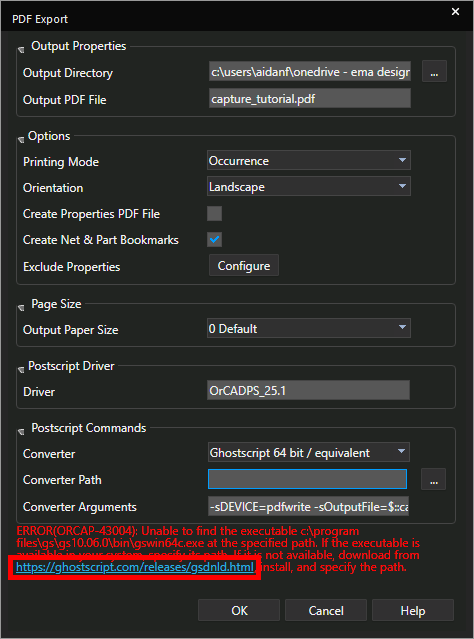
Step 11: If this is your first time generating a Smart PDF, red text will be visible. Click the link to open the download window.
Note: If the green text gswin64c.exe is available is visible, skip to Exporting the Smart PDF.
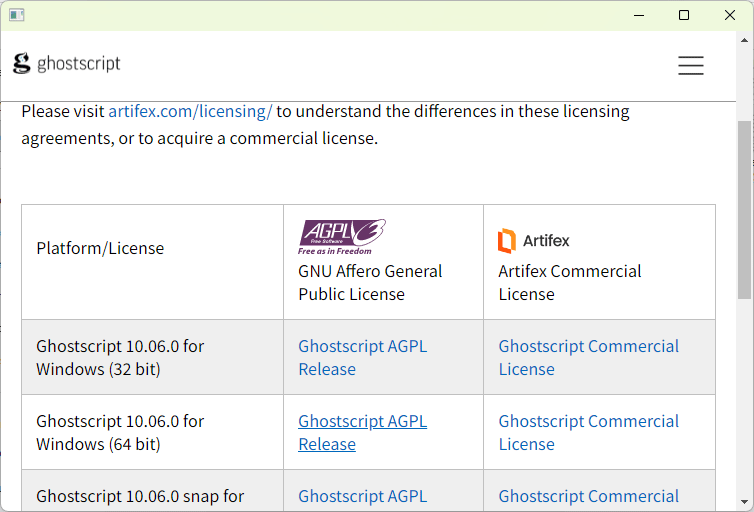
Step 12: Select the appropriate link to download GhostScript.
Step 13: The file browser opens. Browse to a location to save the installer.
Step 14: Run the installer and follow the on-screen prompts to install GhostScript.
Step 15: Back in Capture, select the ellipsis for Converter Path.
Step 16: Browse to C:\Program Files\gs\[gs_version]\bin.
Step 17: Select gswin64c.exe and click Open to define the executable path. GhostScript has been configured and the Smart PDF can be generated.
Exporting the Smart PDF
Step 18: Under Output Properties, select the ellipses for Output Directory.
Step 19: The File Browser opens. Browse to a location to save the file and click Select Folder.
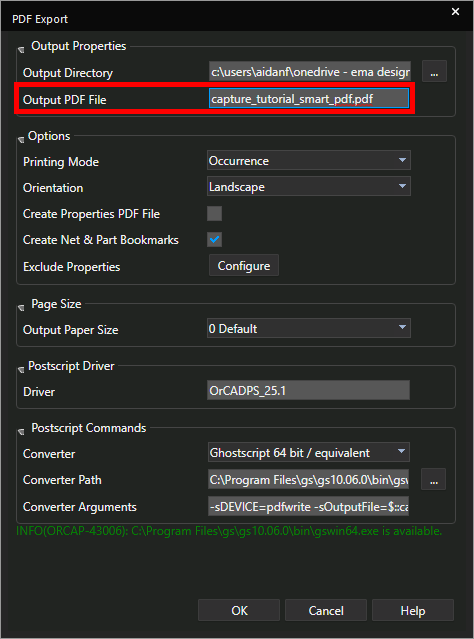
Step 20: Enter a name for the file into the Output PDF File field.
Step 21: Click OK to generate the Smart PDF. The PDF opens automatically in the default PDF viewer.
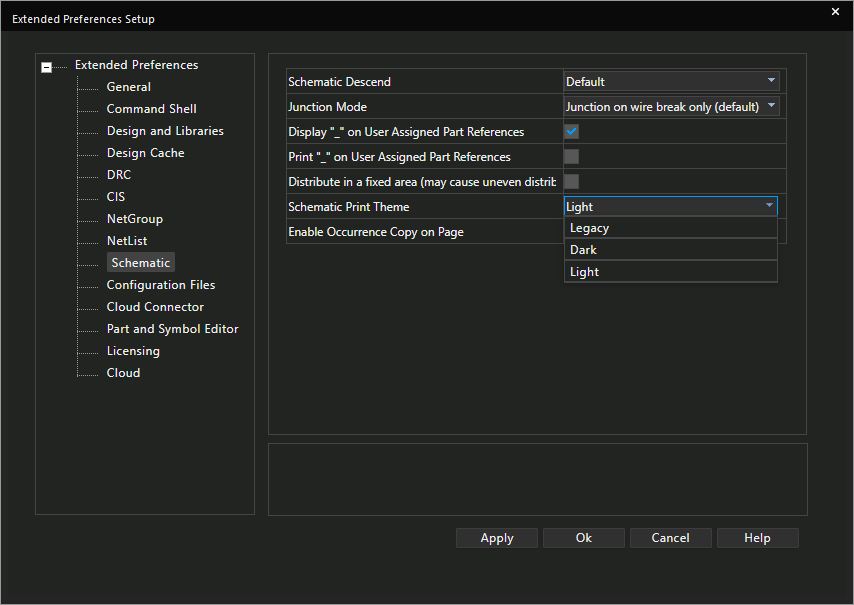
Note: By default, the schematic canvas will print in light mode regardless of your canvas settings. The PDF can be changed to print in dark mode or legacy mode by selecting Options > Extended Preferences from the menu. Select Schematic and change the schematic print theme to the desired settings.
Navigating the PDF
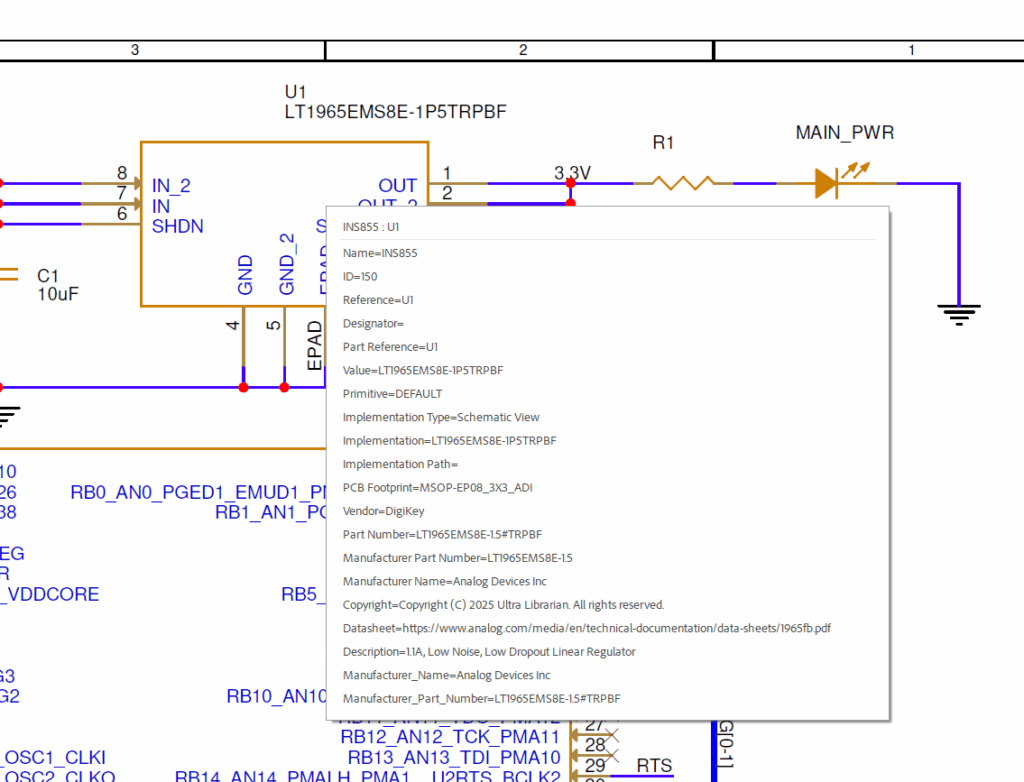
Step 22: Select a part to view its information, such as PCB footprint, reference designator, and the vendor added in Walk-through 11.
Step 23: Open the Bookmarks panel.
Step 24: Select a reference designator bookmark. The PDF will zoom into that part. The same can be done for pins and nets.
This completes the PDF generation lesson. In the next lesson, we will netlist the design for PCB layout.
