
Lesson 5: Wiring
This walk-through demonstrates several techniques for connecting components in OrCAD X Capture 25.1. After you complete this topic, you will be able to:
- Establish connections between components automatically
- Establish connections between components manually
- Select and move groups of wired components
- Place buses
- Connect nets to buses manually
- Connect nets to buses automatically
- Clearly communicate nets with no connections
To follow along, continue with the design from the last topic or download the provided design under the Materials tab.
 Open in New Window
Placing Wires Automatically
Step 1: Select Place > Auto Wire > Two Points from the menu to activate the Auto Wire mode.
Step 2: Click to select a pin on crystal Y1. A guideline is attached to your cursor.
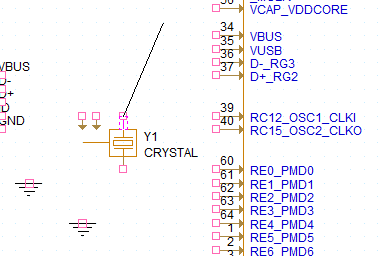
Step 3: Click the corresponding pin on IC1. A wire is drawn.
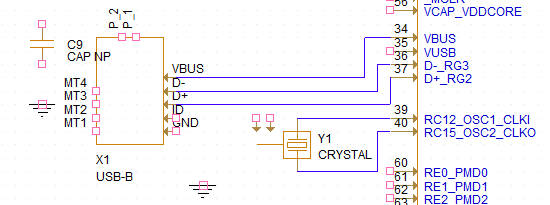
Step 4: Repeat this process for the other pin on Y1 and pins VBUS, D-, and D+ on USB connector X1. Make the connections as shown above.
Step 5: Press Escape on the keyboard to exit the auto wiring mode.
Place Wires Manually
Step 6: Select Place > Wire from the menu or the W button on the toolbar.
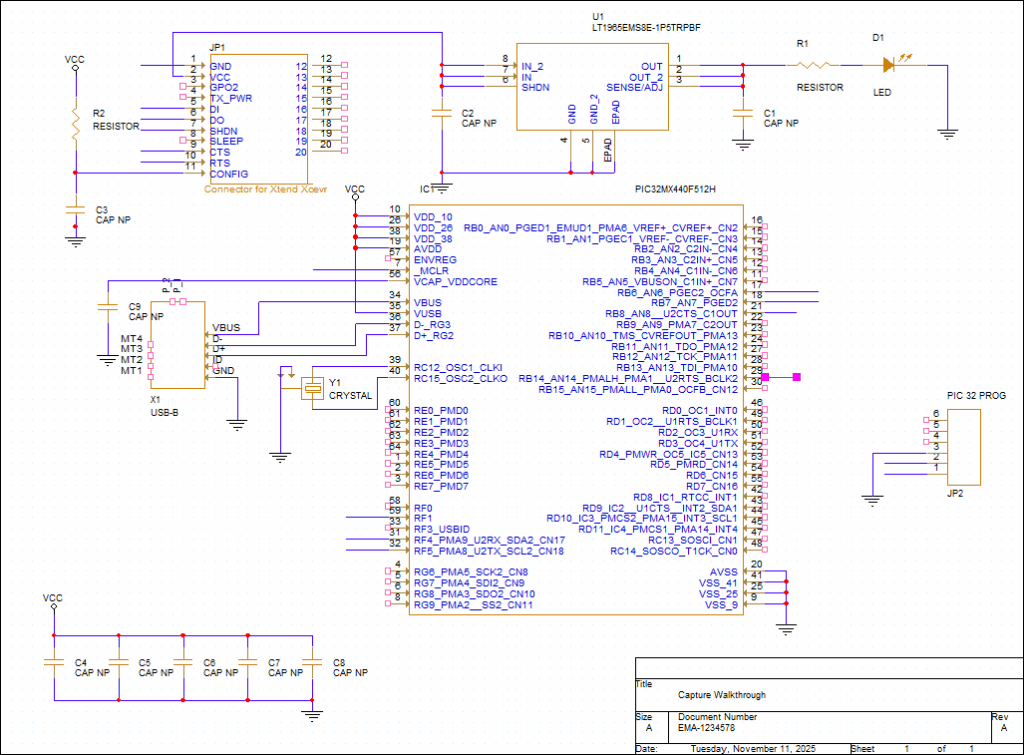
Step 7: Click each connection to add a wire and click again to finish. Wire the schematic as per the provided Capture Tutorial.pdf.
Note: Click and drag to adjust components as needed for optimal spacing. To copy and paste wires, use CTRL+C and CTRL+V on the keyboard.
Step 8: Add a short wire to the pins that will be connected to buses or net aliases:
- For component JP1: pins 1, 5, 6, 7, 9, and 10
- For component JP2: pins 1 and 2
- For component IC1: pins 7, 17, 18, 21, 29, 31, 32, and 59
Note: To repeatedly place a wire, use F4 on the keyboard. Pins 4 and 5 of JP2 will be automatically connected to a bus, so do not add short wires to those pins.
Step 9: When finished, right-click and select End Wire. Selecting End Wire will place the wire outline you have on your cursor. You can easily move sections of your schematic by highlighting and dragging the selection, a component, or a wire.
Placing Buses
Step 10: Select Place > Bus from the menu or press B on the keyboard.
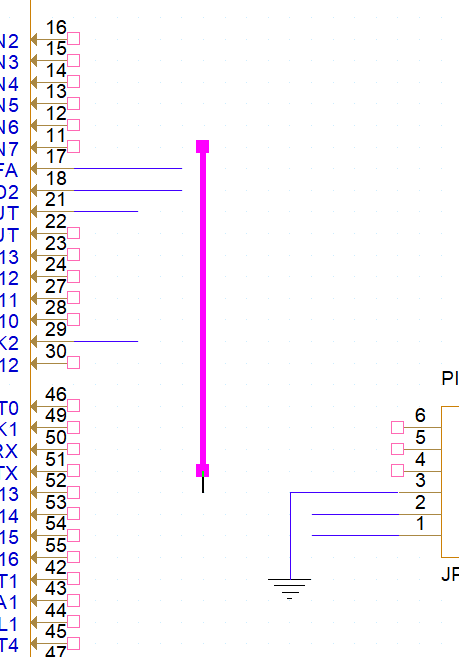
Step 11: Click to start drawing the bus and click again to finish. Press Escape on the keyboard when finished.
Note: In your own designs, you can choose whether to use diagonal or orthogonal buses. Diagonal buses are often used to improve schematic readability as they may be easier to discern from standard wires placed at 90-degrees. To draw a diagonal bus, hold Shift for the first click.
Placing Bus Entries Manually
Step 12: Select Place > Bus Entry from the menu.
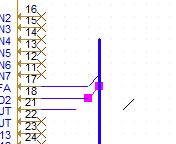
Step 13: Click to place the bus entries for component IC1, pins 17 and 18.
Note: Use R on the keyboard to rotate the bus entry.
Placing Bus Entries Automatically
Step 14: Select Place > Auto Wire > Connect to Bus from the menu.
Step 15: Select pin 5, then pin 4 of JP2.
Step 16: Select the bus to connect the pins.
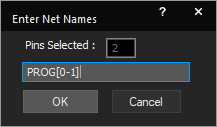
Step 17: The Enter Net Names window will appear. This bus has sequential nets. To add the net names to all selected nets, add the name, a bracket, and the set of numbers. For this example, enter the name PROG[0-1] and click OK.
Note: For better visibility, click and drag net names.
Placing No Connects
Step 18: Select Place > No Connect from the menu or press X on the keyboard.
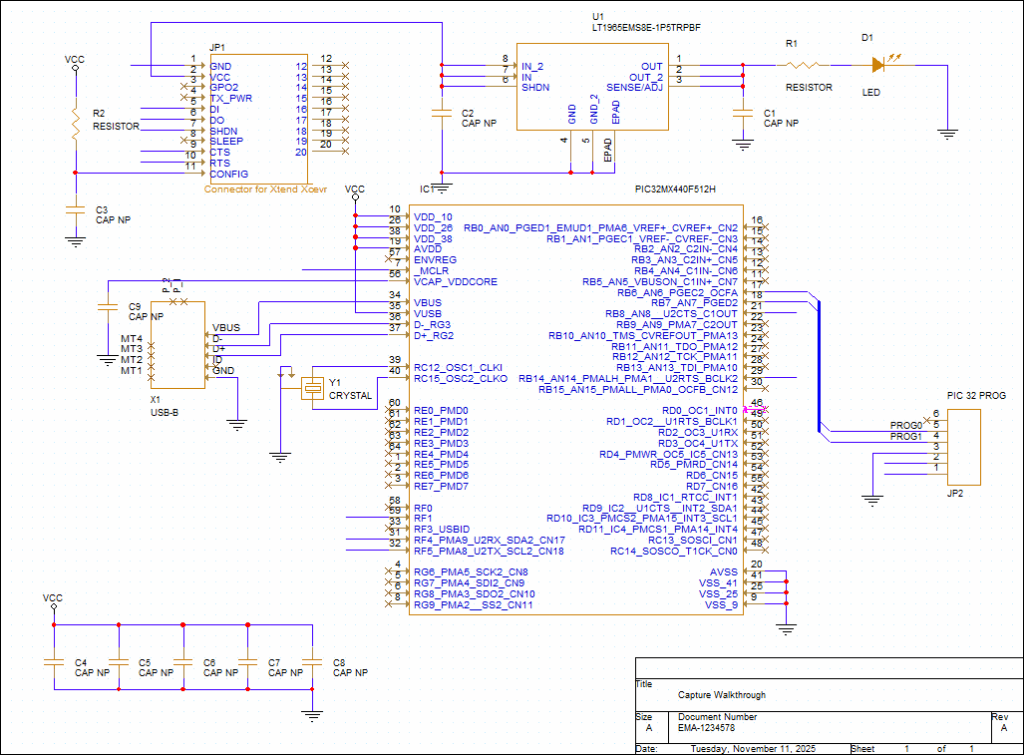
Step 19: Click to place no connects on all unused pins. Right-click and select End Mode when finished.
At this point in the walk-through, pins with only short wires connected are not unused. These connections will be completed in the next lesson. This completes the wiring lesson. In the next lesson, you will learn how to label nets and clearly communicate design intent with net aliases and text.
