
Schematic Design Review and Markup
This walk-through demonstrates how to embed comments and markup for design reviews in a schematic with OrCAD X Capture 25.1. After you complete this topic, you will be able to:
- Add comments to a schematic file
- Add markup
- Review comments from other designers
- Resolve comments
- Turn comment visibility on and off
To follow along, continue with the design from the previous lesson or use the downloaded materials. If materials were not downloaded at the start of the walk-through, they can be accessed in the Materials tab of this lesson.
 Open in New Window
Adding Comments
Step 1: Select Tools > Markup from the menu to open the Comments panel.
Step 2: In the Comments panel, select New Comment.
Step 3: Zoom into the desired section of the schematic.
Step 4: Type the comment into the Comment bar.
Note: Tag coworkers with the ‘@’ symbol and their username.
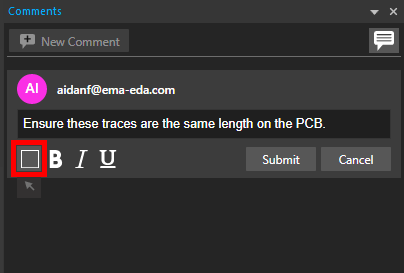
Step 5: Select the Draw Rectangle icon.
Note: To draw an arrow, hover your mouse over the draw rectangle button and click to select the arrow tool.
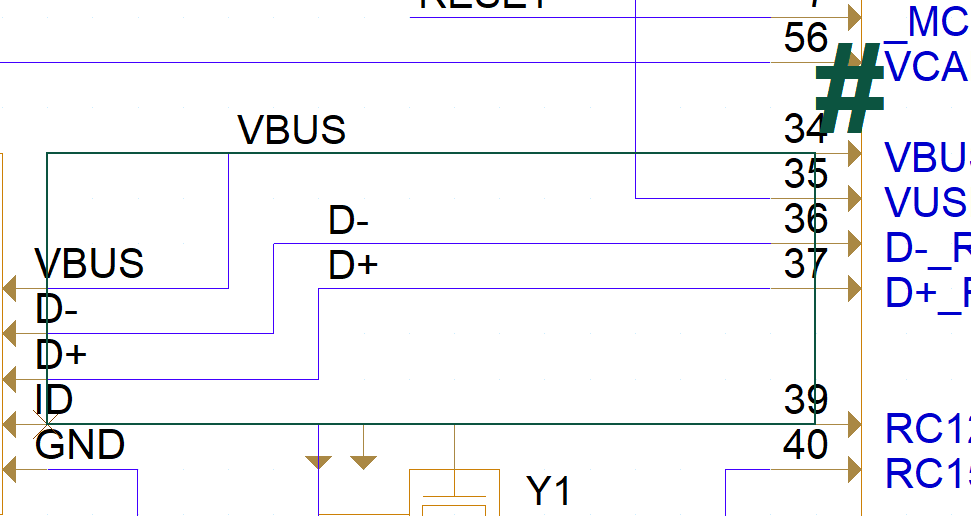
Step 6: Click to begin the rectangle. Move the mouse to draw the rectangle over the area of interest on the schematic and click to finish the rectangle.
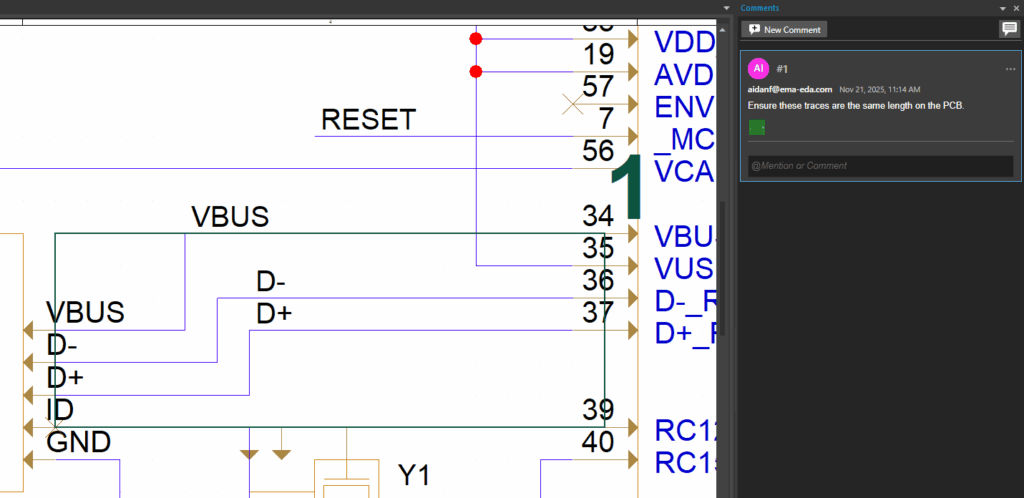
Step 7: Click Submit. The comment has been embedded into the design database and is now accessible for any users to review.
Reviewing Comments
Once you receive a design with embedded comments and markup, the following steps can be used to review the feedback. Since the comments and markups are embedded in the design files, designs can be shared through manual methods like shared folders and email or integrated methods such as cloud workspaces or OrCAD EDM.
Step 8: Open the design file in OrCAD X.
Step 9: Select Tools > Markup from the menu to open the Comments panel.
Step 10: View the comments. Click a comment to be brought to its location in the schematic canvas.

Step 11: Click the icon of the PCB to bring up a snapshot of the schematic when the comment was recorded.
Step 12: Click in the @Mention or Comment box and type a response to the comment. Click Submit.
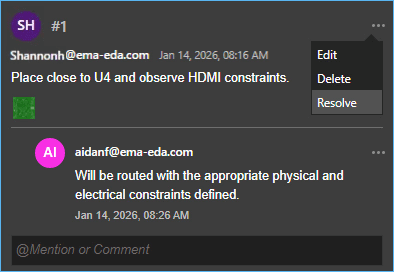
Step 13: To resolve a comment, click the ellipsis at the top of the comment and select Resolve.
Step 14: In the Comments panel, click the comment icon to turn off visibility of the comments.
Step 15: Repeat this process as needed to efficiently communicate with team members and perform design reviews.
