

Sigrity X
Net and Shape Preview Options
- Layout Workbench
Two new options have been added to the Edit Cutting Polygon window; Split Open Nets and Remove Isolated Shapes. These options help identify disconnected net segments and automatically remove isolated shapes created during the cutting polygon process, resulting in cleaner and more manageable layouts.
Advanced Editor Support for Rigid-Flex Designs
- Layout Workbench
Layout Workbench now provides advanced editing support for rigid-flex designs in the Clarity, PowerSI, and PowerDC workflows. The Stackup Editor and Zone Editor, available from the General tab of the window accessed from Tools > Options > Edit Options, allow for more efficient creation, modification, and management of stackups and zones.
Layout Sanitization Options for Rigid-Flex Designs
- Layout Workbench
The Sanitize Layout window includes the following new options to reduce the cleanup effort and minimize simulation failures caused by zone boundary issues in rigid-flex designs.
- Align Zone Boundary: Aligns adjacent zone boundaries present in a rigid-flex design by automatically correcting the minor gaps and overlaps that could prevent the simulation.
- Confine Shape to Zone Boundary: Trims shapes to zone boundaries by removing overlapping portions where the corresponding layer is not present, ensuring that the shape conforms to a valid zone area within a rigid flex design.
Power Rating Support for Discrete Components
- Layout Workbench
- Analysis Model Manager
- PowerTree
- PowerDC
The Analysis Model Manager and PowerTree now support the Power Rating property for discrete components through updated UI fields and property panels. This allows for automatic power-to-current conversion.
Import Multi-Board Connections from CSV
- PowerTree
An option, Import Blocks Connections, has been added in PowerTree. This option allows you to import multi-board block connections from a PowerTree template or connector CSV, reducing the need for manual setup.
PowerTree Parser Settings Retained Across Session
- PowerTree
PowerTree now retains parser settings across sessions, reducing setup time for each design.
Searchable Connector Selection in PowerTree Block Definition
- PowerTree
The PowerTree Block Definition panel now in multi-board designs now supports searchable connection fields for quick component lookup.
Improved Navigation Between PowerTree Canvas and Edit Properties Panel
- PowerTree
Selecting a component in the PowerTree canvas now automatically highlights and shows the corresponding entry in the Edit Properties panel, making it easier to navigate and manage large designs.
Restrict 3D Component Data
- Layout Workbench
Define the DNE3D keyword under the Package Description Lines section in the .spdx file to prevent the selected 3D component data from being exported to external format while retaining it for visualization and analysis.
Format: .Package $Package DNE3D = 1
Define Die Outlines with DXF Import
- Layout Workbench
The DXF Layer Stackup window now includes the die_outline layer type in the Type field. This enables the die outline information to be defined directly during DXF import for improved design representation.
Import Net Lists in DXF to SPD
- Layout Workbench
The DXF Layer Stackup window now includes the Import Net List option to import the net list data during layer stackup configuration to streamline the DXF-to-SPD translation workflow.
Multiple Frequency Model Type
- Package eXtractor
A new Multiple Frequency model type is available in the Advanced Package eXtractor, enabling broadband S-parameter extraction workflows for both net-based and pin-based simulations.
Electrical Performance Assessment
- Package eXtractor
The Electrical Performance Assessment workflow has been added to analyze package electrical performance. The workflow will guide users through package configuration, analysis setup, result review, and report generation with support to include existing capacitor and die-model definitions during the assessment.
TCL Command Updates
- All
Two new TCL commands have been added.
sigrity::generateTVSmodel– Generates a through-silicon via (TSV) model from a TSV location file and a unit TSV geometry (SPD) file generated with GDS2SPD Translator. This command automatically simulates large arrays of repeated TSV structures while preserving the interactions between TSVs.sigrity::generateTVSmodel -ploc– Generates a TSV model with a PLOC file and a unit TSV geometry file. This command automatically simulates large arrays of repeated TSV structures while preserving the interactions between TSVs.
Support for 0Hz Start Frequency
- Optimize PI
The starting frequency can now be set to 0Hz in setup for simulation. This allows 0Hz data to be included from PowerSI frequency sweeps, improving consistency between the two tools and providing a complete, low-frequency analysis result.
Power Ratings for Disrete Components
- PowerDC
Power ratings can now be used when creating discrete components. The specified power rating is automatically converted to the corresponding maximum current, simplifying component setup.
Save Sink Models to AMM Library
- PowerDC
A new option, Save to AMM Library, in the Set up Sinks editor saves selected sink models to an AMM library for reuse in future projects.
VRM Current Capability Validation
- PowerDC
PowerDC now flags the VRMs that exceed configured output current limits. If this occurs, the pass or fail status is indicated in VRM Voltage Results.
Sense Results for IR Drop Analysis
- PowerDC
A Sense Results table has been added to the Electric Result Table section in the generated simulation report. This table reports VRM-to-sense and sense-to-sink IR drop values for single board designs.
TCL Command Updates
- PowerDC
The following TCL commands have been added to PowerDC.
sigrity::export pdfcDCDiagram -FileName {pdc_dcblock_diagram.csv}– Exports DC block diagram results from an IR drop report to a CSV file.sigrity::set pdfcUseSinkInternalPinVoltage {0|1}– Selects the sink voltage reporting point for IR drop results and displays results based on external or internal nodes.
Integrated Port Generation Analysis
- PowerSI
PowerSI now performs port generation automatically as part of the Advanced DC+AC Fit Workflow, simplifying simulation setup and eliminating the need to configure a separate analysis flow. This enhancement extends support for complex circuit components, including multi-terminal components and components with non-ground pins. The integrated workflow also supports DC-AC fitting for circuit ports and generates DC and DC-AC fitted results instead of separate AC results.
Solver-Specific Computer Resources Setup
- PowerSI
The Setup Dialog box now shows configuration options based on the solver selected for simulation, allowing for easier optimization of computer resources.
SSH Localhost in Distributed Simulation
- PowerSI
The computer resource settings window now includes a Localhost option to distribute a simulation run using SSH. If this option is selected, the local computer is included as the first machine in the computer list and used for preprocessing before the simulation starts. If unchecked, the local system connects to the first computer in the list using SSH for preprocessing after the simulation starts.
Enhanced Server Farm Mode Configuration
- PowerSI
PowerSI now supports a server farm mode, bsub/script/nc, for simulating a design in Linux. This provides greater flexibility when configuring server farm environments by supporting multiple job submission methods, including script-based execution, while enabling distributed simulation setup and resource management. This simplifies deployment in diverse computing environments and improves support for customized cluster workflows.
Nodes at Pad Centers During GDS to SPD Translation
- Layout Workbench
Use the SHP_NODE command to automatically create nodes at the center of specified pad shapes during the translation process. This simplifies the node creation process and reduces manual effort.
Enhanced Circular Shape Recognition
- Layout Workbench
Use the CIRCLE_EXT_TOL command to specify the tolerance for converting polygon geometries to circles during the translation process.
Improved Cell Ring Structure Translation
- Layout Workbench
The MERGE_CELL_RING_VIA option has been added to support correct generation of connected vias in cell ring structures. This enhancement improves translation accuracy for cell ring via merging and ensures reliable connectivity in the generated database.
OASIS to SPD Translator GUI Improvements
- Layout Workbench
The OASIS to SPD Translator user interface now includes updated field names and layout refinements. These improvements provide a cleaner and more intuitive experience through improved spacing, clearer labeling, and overall usability enhancements.
Reorganized GDS to SPD Translator GUI
- Layout Workbench
The GDS to SPD Translator UI has been enhanced with a reorganized tab structure and new tab names. The Design tab has been renamed to Options and the Text Labels tab has been renamed to Labels. Additionally, the Labels and GDS Block tabs have been updated for easier navigation and improved usability.
Model Component Type in Electrical Performance Assessment
- XtractIM
The Model component type has been added to include existing capacitor and die-model definitions during electrical performance assessment, reducing manual setup effort.
DXF2SPD Workflow Documentation
- XtractIM
The User Guide includes a new topic, DXF Import Mapping Support in XtractIM, covering the DXF2SPD workflow. This topic describes how to translate DXF layouts into SPD designs, including layer and connectivity mapping, die and lead generation, wire bond configuration, stacked die support, package pin assignment, and package outline definition.
TSV Modeling Settings
- XcitePI
Support for TSV Modeling settings has been added to the workflow panel to provide a centralized location to configure TSV (through-silicon via) modeling parameters. Electrical and physical TSV characteristics can be defined with geometry or SPICE-based models.
Encrypted iRXC File Support
- XcitePI
Support for encrypted iRXC files has been added, allowing the secure import and use of encrypted extraction data in XcitePI.
MPIPE Command Syntax Update
- Broadband SPICE
The -MPIPE command syntax has been updated to VF_MPIPE:1 [0/1].
Data Analysis Enhanced in Windowing Calculation
- Topology Explorer
The Windowing calculation window can now be accessed with the Measure Waveform shortcut menu in the plot area of the 2D Curve tab. The following enhancements have been added to streamline data analysis and result management:
- Export calculation results to a CSV file
- Plot calculation results directly from the dialog box with the Add New Plot Curve View button
- Use the Show Details shortcut menu option to return the appropriate point when multiple points share the same value
- Work with all supported probe types and automatically identify relevant points when duplicate values exist
- Save and load marker templates for reuse
- Copy the tooltip content directly from the plot
- Maintain consistent marker displays across viewers
These enhancements simplify data analysis, reduce manual post-processing, and simplify comparison, documentation, and sharing of measurement results.
Multiple Grid Curve Viewer
- Topology Explorer
A new Grid Curve Viewer option is available from the dropdown that opens upon right-clicking the plot area of the 2D Curves tab. The Grid Curve Viewer window displays each visible waveform in its own pane, making it easier to inspect, compare, and organize large sets of curves without crowding a single plot.
Key features include:
- Grid-based curve display: Display the visible curves from the current plot in a grid layout with one curve displayed per pane for easier analysis.
- Configurable layouts: Choose grid layouts from 1×1 to 8×8. Scroll bars are provided if the number of curves exceeds the available panes.
- Synchronized Operations: Use Apply to All Views to perform actions across all panes simultaneously.
- Flexible Curve Organization: Rearrange, copy, move, combine, and separate curves with drag-and-drop, keyboard shortcuts, or dropdown menu commands.
- View Management: Insert and delete panes, sort layouts, restore the original arrangement, and navigate quickly with the curve list.
Curve Filtering
- Topology Explorer
A new Filter button in the 2D Curves tab helps quickly find and display the curves relevant to the current analysis. The Curve Filter window can be used to filter curves by attributes such as result type, block, location, bus group, and signal; eliminating the need to manually select curves from large waveform lists. Filter settings are retained and applied across curve groups for a more efficient review workflow.
Automatic Extraction of Broadband SPICE Models
- Topology Explorer
An Autoextract BBS Model option is available in the properties of S Parameter,SPICE Subcircuit, and N-term IC blocks. When enabled, referenced S-Parameter models are automatically converted to Broadband SPICE (BBS) equivalent circuit models during a simulation and used for transient power integrity analysis. This capability helps improve the correlation between SPDsim and circuit simulators such as Spectre and HSpice, while simplifying the model preparation for time-domain power integrity simulations.
Customizable Floating Toolbar Icon Size
- Topology Explorer
The size of the icons displayed in the floating toolbar can now be switched between small (S) and large (L) based on display preferences and workspace requirements. This enhancement improves toolbar visibility on high-resolution displays and provides greater flexibility in managing screen space.
DDR Measurement Report for LPDDR6 and HBM4 Interfaces
- SystemSI
The Parallel Bus Analysis (PBA) workflow now supports DDR measurement reports for the next-generation memory technologies LPDDR6 and HBM4. This expands DDR measurement coverage for power-sensitive and high-performance designs, as well as data-intensive applications.
IBIS Electrical Module Description Models
- SystemSI
Topology Workbench now supports simulating IBIS-EMD models, enabling complex electrical modules defined in EMD files to be represented and simulated as a single component. This capability simplifies the setup of complex memory and multi-component designs by eliminating the need to manually instantiate and connect individual IBIS components while preserving compatibility with the Parallel Bus Analysis and Topology Explorer transient analysis workflows.
Linear Buffer Models
- SystemSI
All Topology Workbench workflows and AMI models now support linear buffer models for Transmitter, Receiver, Controller SPICE, and Memory SPICE blocks.
Simultaneous Read and Write Cycles Simulations
- SystemSI
The Parallel Bus Analysis workflow supports simultaneous read and write simulations through a new Reverse Read/Write option available for bus groups in the Analysis Options panel. This option reverses the I/O direction of signals within a bus group without recreating the topology, making it easier to evaluate bidirectional interfaces and explore additional traffic scenarios using the same design configuration.
Transient Circuit Simulation in Serial Link Analysis
- SystemSI
Transient circuit simulation can now be run directly within the Serial Link Analysis (SLA) workflow through SPDsim, Spectre, or HSPICE; eliminating the need to switch to the Topology Explorer workflow. This revised workflow reuses the existing SLA topology, models, stimulus configuration, and distributed computing settings, making it easier to compare channel-based and circuit-based simulation results while maintaining a consistent analysis environment.
Multi-Channel Analysis
- SystemSI
The SLA workflow adds the following enhancements to simplify the setup, simulation, and analysis of multiple receiver channels in a single channel-simulation run:
- Component-Based Model Selection: The Analysis Options panel uses a tree-based component view in the Tx and Rx tabs, replacing the previous signal-based tabbed layout. The new interface eases management of multi-channel designs and retains signal-level controls for I/O model, jitter, and noise settings.
- Multiple Primary Receiver Selection: Multiple receiver channels can be designated as the primary channels in the Analysis Options panel. This capability enables multiple victim channels to be analyzed in a single simulation run.
- Multiple Victim Channel Selection: The Victim Rx column in the Connectivity Checker panel can be used to select multiple victim receiver channels for analysis. Selected channels are automatically included as primary channels, streamlining channel selection and connectivity validation within a single workflow.
- Multi-channel Results and Reporting: Results for all selected primary receiver channels are generated in a single simulation run and organized by the receiver channel. Waveforms, eye diagrams, and channel reports can be reviewed together, making it easier to compare channel behavior and identify crosstalk effects across multiple receivers.
Comprehensive Characterization Results for Multi-Channel Analysis
- SystemSI
The SLA workflow now supports comprehensive characterization for multi-channel analysis to evaluate all selected channels in a single simulation run. Each channel response includes the desired signal and crosstalk from other active channels, providing a more realistic representation of channel behavior and enabling direct comparison of channel responses.
This feature allows designers to:
- Enable comprehensive characterization: Enabling the appropriate toggle button in the Options window characterizes all selected channels together instead of individually.
- Simulate all selected Tx channels together: The Seed Control list in the Channel Simulation tab of the Analysis Options panel sets the coordinated aggressor-stimulus relationship to Even or Random.
- Generate a single characterization input: A single input file is created for all selected channels, replacing multiple characterization inputs.
- Compare channels in one result set: View and compare all characterized channels in 2D Curves, 3D Eye Density, and Channel Reports.
PCI Express Gen 7 Compliance Kit
- SystemSI
The Compliance Kit workflow now includes a PCIe 7 Compliance workflow for validating PCI Express Gen 7 designs. The workflow provides two new templates to configure and run PCIe 7 compliance validation more efficiently. Use pcie7_thru for through-channel analysis and pcie7_xy for channel analysis with crosstalk.
Noise Modeling for VRM Blocks
- SystemPI
SystemPI now supports switching and random noise sources for VDC-based VRM blocks in the PDN Impedance and Power Ripple Analysis workflow, enabling more accurate simulation of voltage regulator behavior. Switching or random noise sources can be introduced into a voltage regulator simulation. By incorporating potential noise effects into VRM simulations, this enhancement helps uncover potential power delivery issues earlier in the design process and improves the accuracy of power integrity and signal integrity validation.
Edit Multiple Current Profiles in Die Model Editor
- SystemPI
The Die Model Editor now supports editing multiple current profiles within a die model from a single interface. To support this use model, the Apply button has been replaced with Apply to Current Curve and Apply to All Curves to update individual profiles or apply changes across multiple current curves simultaneously. This enhancement simplifies the management of die models with multiple profiles and reduces repetitive editing tasks.
Context-Sensitive Help for Analysis Windows
- Aurora
Context-sensitive help is now available in all in-design analysis workflow windows. Clicking Help opens the documentation topic for the active window in Doc Assistant, providing immediate access to information about options, settings, and configuration parameters without leaving the workflow.
LayoutLink Support in Reflection Workflow
- Aurora
The Reflection workflow supports reusable LayoutLink or System Configuration files (.lcf), enabling reflection analysis of interconnects defined across linked designs within a system configuration. Designers can create reusable System Configuration or LayoutLink files that capture multi-design connectivity, participating layouts, topology information, and analysis profiles. A LayoutLink profile can be selected to analyze a specific system configuration without manually recreating system connectivity within the workflow.
Simulating Signal Behavior Across Multiple Connected Designs
- Aurora
The Reflection Workflow supports system-level analysis across multiple connected PCB and package designs. Connectivity between layouts is defined through a System Configuration or LayoutLink (.lcf) file, allowing signal behavior to be evaluated across the entire system instead of a single board or package.
SPICE Model Extraction Support in Interconnect Model Extraction Workflow
- Aurora
The Interconnect Model Extraction (IME) workflow now supports direct generation of SPICE compatible circuit models from layout structures for circuit simulation and analysis. The Clarity 3D QS (RLGC) extraction engine in the IME workflow can be used to generate RLGC-based circuit models, which typically capture resistance, inductance, capacitance, and conductance characteristics of interconnects, for SPICE-based simulations. This enhancement expands the extraction and modeling options available in the IME workflow alongside the existing PowerSI and Clarity 3D FEM solvers for S-Parameter models.
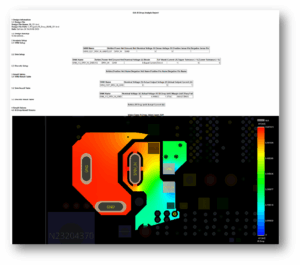
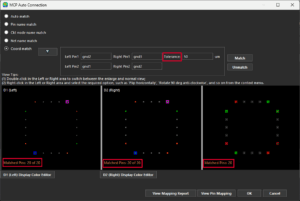 The Margin field is renamed to Tolerance (for Coord match) in MCP Auto Connection dialog box, and the number of matched pins is now displayed. The Pin Mapping Report dialog box now includes clear matched/unmatched section labels.
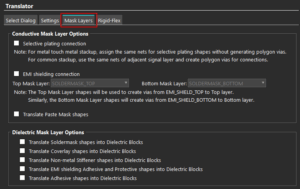 The Conductive Mask Layer Options and Dielectric Mask Layer Options that were previously available under the Rigid-Flex tab of the Translators form have now been separately organized under a new tab called Mask Layers.
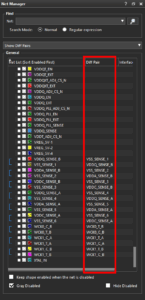 The Net Manager dialog box provides an additional display mode, Show Diff Pairs, to view all the differential net pairs present in a design. When you choose Show Diff Pairs as the display mode, the net manager adds a new column, Diff Pair, to the table that indicates all the differential net pairs.
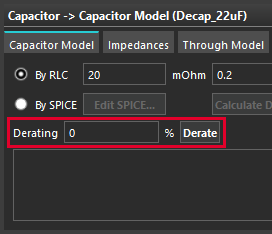 An option to create derated capacitor models has been added in the Capacitor Libraries section.
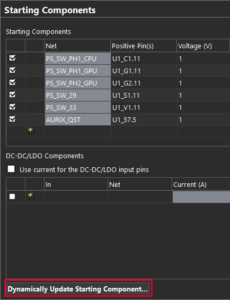 PowerTree now detects mismatches between the starting component settings and the layout netlist and lets you update the power tree using the Dynamically Update Starting Component feature available in Starting Components form.
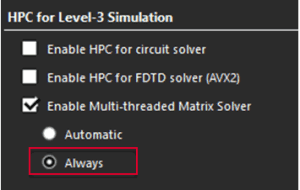 The multithreaded circuit solver is now more robust. For designs that previously encountered convergence or stability issues, selecting the Enable Multi-threaded Matrix Solver option with the Always option in the HPC for Level-3 Simulation form can now resolve certain failure cases.
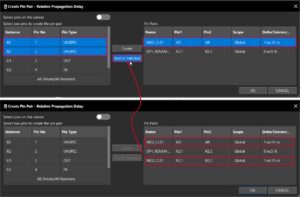 A new button, Add to Selected, is available in the Create Pin Pair – Relative Propagation Delay window. Clicking this button adds a pin pair selected from the left table to an existing match group in the Pin Pairs table, creating a new entry where the selected match group’s name is retained. The cells under the Name column of the Pin Pairs table are editable.
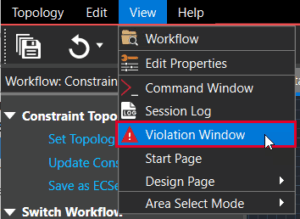 The new Violation panel lets you view the error, warning, and information messages related to a topology extracted from Allegro Constraint Manager into the Constraint Setup workflow in Topology Workbench for signal integrity exploration. To open this panel, select View > Violation Window.