

Having an accurate and up-to-date database of parts will ensure that your designs only use approved parts, prevent obsolete parts or unattainable parts from being placed, and increase design accuracy. However, a part database may contain thousands of similar parts, especially for a large company. Component Information Portal (CIP) allows engineers to efficiently manage their components and offers a variety of methods to search for parts in your component database, including:
- Search By Parameters
- Search By Category
- Search By Distributor
This quick how-to will provide step-by-step instructions on how to search parts in your component database with CIP.
How-To Video
 Open in New Window
Search For Parts in your Component Database: Parametric Search
Step 1: Select CIP > Open CIP from the menu. Log in with your username and password.

Step 2: CIP opens to the CIS Database Search window. For this example, database search parameters will be used to search for a 100nF/0.1uF capacitor in the 0603 package.
Select Value from the Parametric Field dropdown in the Search Parameters table.
Step 3: Select Equals (=) for the Operator.
Step 4: Enter 100nF for the value.
Configuring Search Parameters
Step 5: Select the plus sign to add a parameter. A new parameter row appears.

Note: If you are searching using multiple component values, the values should be enclosed in parentheses to ensure the value condition is evaluated first. Select the plus sign under Open Parenthesis for the first parameter, then select the plus sign under Close Parenthesis for the second parameter. Parentheses are shown in the rows.

Step 6: Set the Parametric Field to Package Size, the Operator to Contains, and enter 603 for the Parameter.
Searching with Additional Fields
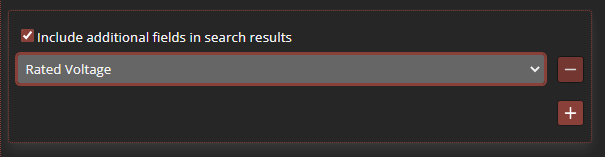
Step 7: To help sort the listed components further, additional fields can be shown in the search results. Check Include Additional Fields in Search Results for this.
Step 8: Select Rated Voltage from the dropdown. The Rated Voltage of each capacitor will be shown in its own column.
Search For Parts in your Component Database
Step 9: With the search parameters defined, select Search to run the search.
Step 10: Scroll to the list of components at the bottom of the CIP window.
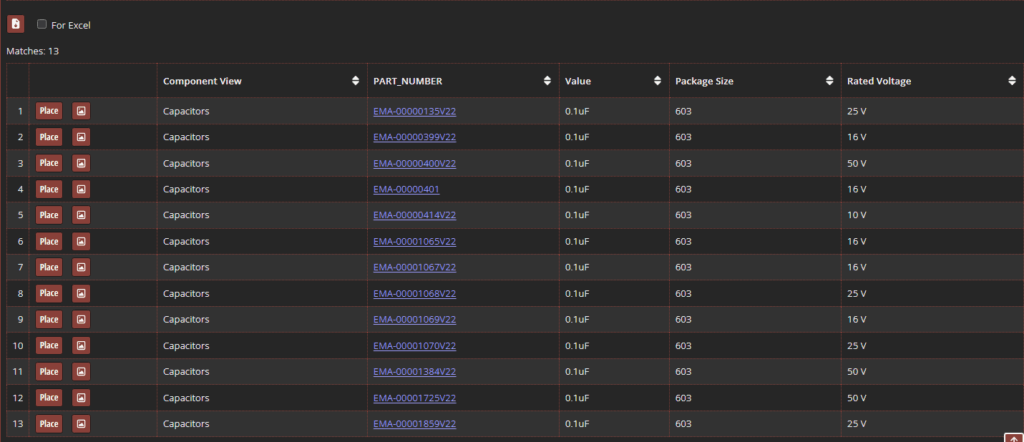
Step 11: View the component list. CIP performed an intelligent search of the component value returning all 100nF capacitors and equivalent values. For this example, 100nF capacitors labeled as 0.1uF in the database in size 0603 are shown, along with their rated voltages.
Note: If the returned list is empty, CLR and Smart Value may be disabled on your CIP server. To re-enable these features, perform the following steps:
Step 1: Open File Explorer and browse to C:\Cadence\CIP-E\Utilities.
Step 2: Run EnableCLRandSmartValue.exe to install and enable the features. Follow all on-screen prompts.
Step 12: Select Preview to preview a component.
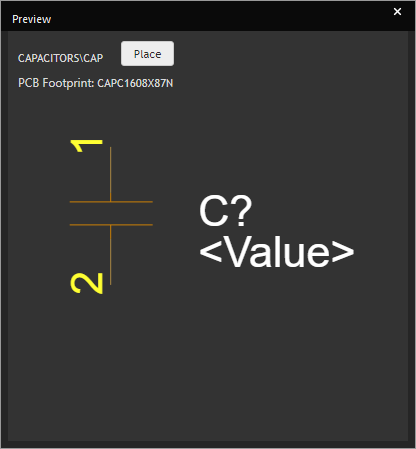
Step 13: View the capacitor preview. The common capacitor symbol is shown. Close the preview window.
Note: If you have a schematic open, select Place to save the component to the schematic canvas. For more information on placing parts in your schematic from your CIP database, view our how-to here.
Saving a Search for Reuse
Step 14: To save the search parameters, enter a name into the Save Search As field.
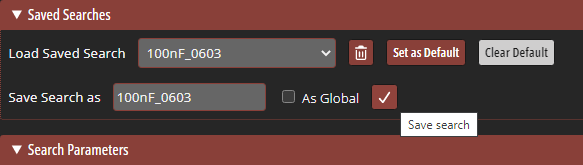
Step 15: Click the checkmark to save the search parameters. The parameters can now be recalled from the Load Saved Search dropdown.
Search For Parts in your Component Database: Part Type
Step 16: To search by part category, select Search > Part Type from the CIP menu sidebar.
Step 17: A list of part categories opens. Here you can browse for and select any type of part available. Expand ICs.
Note: Subfolders shown here will vary depending on the component library loaded into CIP. For this example, the EMA starter library will be used. To learn how to import the starter library, see our how-to here.
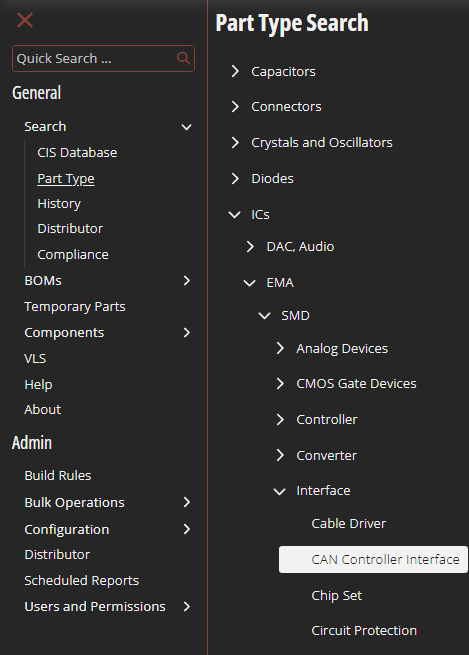
Step 18: Expand the available subcategories and select the desired subcategory. All matching parts are listed.
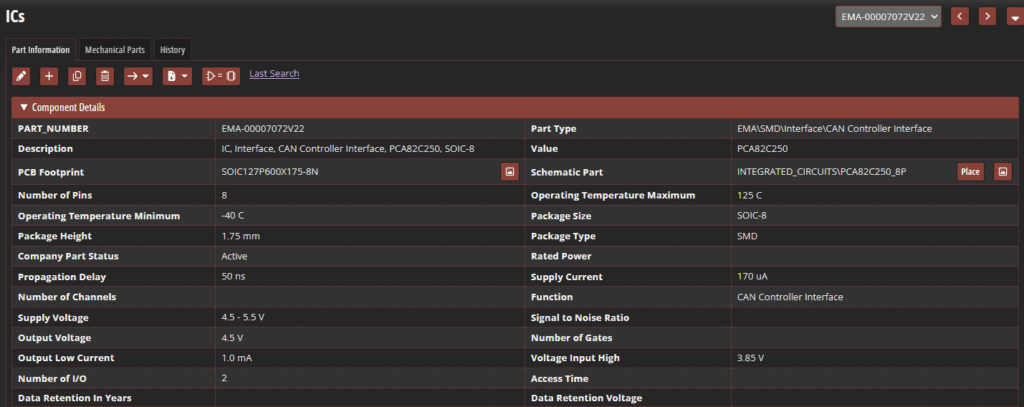
Step 19: Select the desired part. The part information table opens, showing all part properties and parameters.
Search For Parts in your Component Database: Quick Search
Step 20: For quick searches, part numbers can be entered into the Search bar. Enter the desired part number or value into the Quick Search bar above the side panel menu.
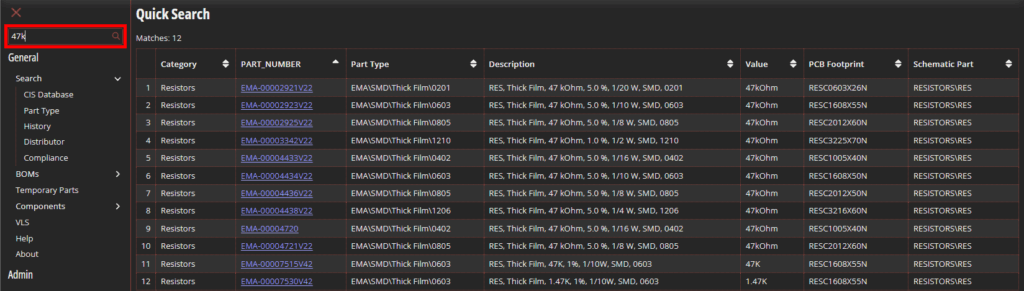
Step 21: View the results. The top 100 parts with the entered keyword are listed, with the closest matches towards the top.
Search For Parts in your Component Database: Distributor Search
Step 22: Select Search > Distributor from the CIP sidebar menu.
Step 23: The Distributor Search panel opens, showing the available distributor logos. Check the options for all distributors. Select Manufacturer Part Number from the Search Type dropdown.
Step 24: Enter a part number into the Search Text field and click Search.
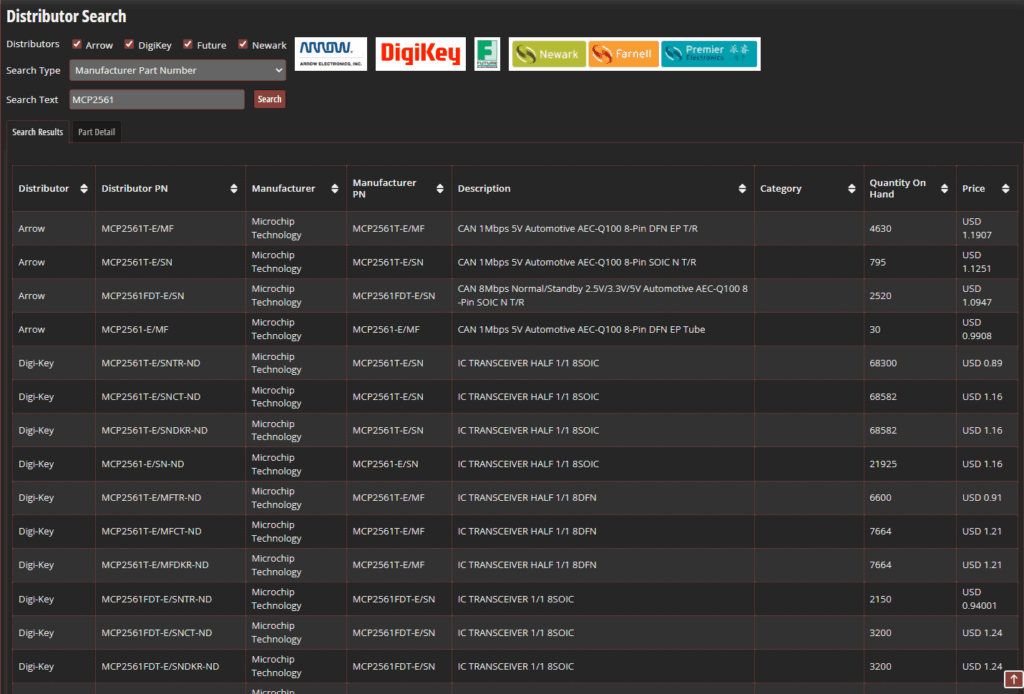
Step 25: View the resulting list. Several packages for the part are listed from multiple distributors along with the quantity on hand and price, allowing you to quickly and easily select the optimal part and add it to your database.
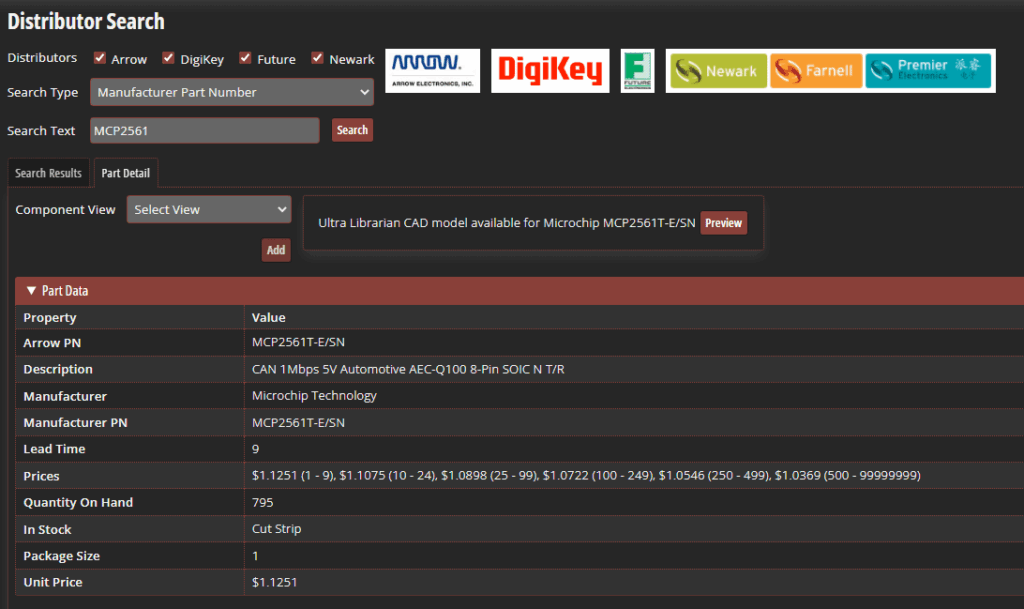
Step 26: Select a listed part for more information. From here, the component can be previewed or added to your database. To return to the part list, select the Search Results tab.
Wrap Up & Next Steps
Quickly and easily search for parts in your component database to efficiently find the components you need for your designs with CIP. Get more step-by-step instructions for CIP at EMA Academy.

